The Tool That Lets AI Use Your Desktop Has No AI Inside It
agent-desktop gives an AI agent control of desktop apps by reading the accessibility tree instead of screenshots. What it is, how to install it, what breaks.
Go looking for the thing everyone has spent the last fortnight calling “AI that can use your computer” and what you download is a command-line binary with no window, no settings screen and no model inside it. There is nothing to open and nothing to log into.
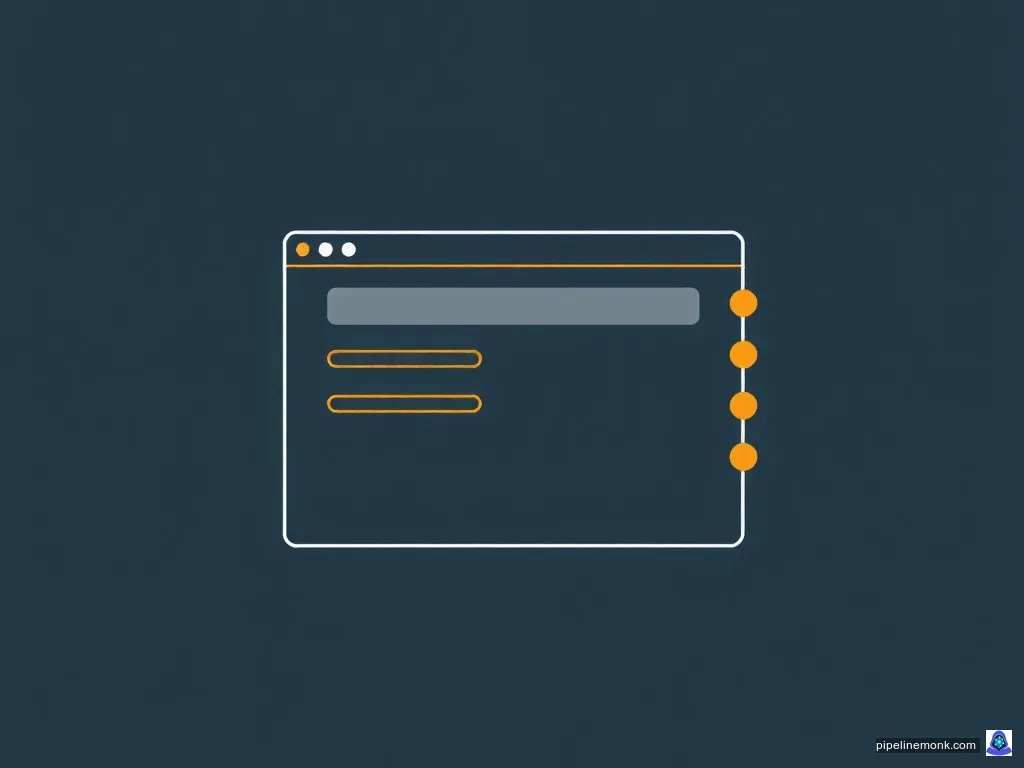
agent-desktop does one job. It reads the accessibility tree your operating system already maintains so screen readers work, turns it into JSON, and hands your agent a numbered list of things it is allowed to click. The agent never looks at a picture of your screen. It asks for a snapshot, gets back an entry saying there is a tree item called “Documents” at reference e8, and clicks e8.

It arrived fast. The repository stood at 22,061 stars and 1,643 forks on 12 November, four releases shipped in the nine days from 28 October, and the npm package is being pulled down about fifty thousand times a week. That speed is also why the coverage is unreliable: a lot of it was written from other coverage, and two of its mistakes will cost you time before you have run a single command.
What the agent-desktop computer use CLI actually does
The README is admirably plain about the shape of the thing. It describes agent-desktop as “computer use for AI agents: see and operate desktop apps on macOS, Windows, and Linux through the OS accessibility tree”, and then says the part that matters most: “The loop lives in your agent; agent-desktop has no model inside. It ships as a CLI and a C library.”
So it is not an agent. It is a tool an agent calls, in the same way a weather lookup is. If you have no agent already — no Claude Code, no harness, no hand-rolled tool-calling loop — then installing this gives you a very capable command-line accessibility inspector and nothing more.
It is free. The repository’s own FAQ asks “Is agent-desktop free and open source?” and answers “Yes.” The licence is Apache-2.0 on the GitHub repository, in the npm registry metadata and in the package’s own LICENSE file, and there is no pricing page anywhere because there is nothing to price.

The confusion is easy to trace. Vercel sells a product called Vercel Agent, which reviews pull requests and investigates production anomalies, and which Vercel’s own knowledge base says “uses usage-based billing for paid work” — the AI provider’s pass-through cost plus a “Vercel Token Rate of $0.25 per 1 million billable tokens”, with installation free for every team and five free chat responses per user per day. That page never mentions computer use or agent-desktop. Two Vercel things with “agent” in the name, one billed and one not, and at least one comparison site has collapsed them into a single paid tool.
You do not build it with cargo. Some of the write-ups tell you to clone the repository and run a Rust build. You can, and the documentation covers it, but it is the from-source path: you need the toolchain pinned in rust-toolchain.toml at 1.89.0 plus a C toolchain — Xcode command-line tools, MSVC build tools or build-essential depending on your machine. The install paths are a package manager. The error is explicable, because agent-desktop is written in Rust and the repository carries rust among its topics, but following it means installing a compiler you will never use again.
One last fact worth dating rather than stating: the current release is 1.2.0, published 5 November 2026. That is the fourth release in nine days, after 1.0.0 on 28 October, 1.0.1 the same day, 1.0.2 on 30 October and 1.1.0 on 3 November. At that cadence, any version number you read without a date beside it is probably already wrong.
Why skipping the screenshot is the whole point
Every desktop operating system publishes a structured description of what is on screen, because assistive technology needs one. macOS has the AX API, Windows has UI Automation, Linux has AT-SPI. That description already knows that a particular rectangle is a button, that its name is “Save”, and that it can be clicked. agent-desktop reads it and reformats it, which means nothing has to be inferred from pixels.
What comes back is a JSON envelope with a tree inside it. Each element carries a role, a name and — if the agent can act on it — a reference such as @s8f3k2p9:e8, together with the actions it advertises. An element earns a reference if its role is one of eighteen the FAQ lists, among them button, textfield, checkbox, link, menuitem, tab and combobox, or if it advertises a primary action of its own.
The alternative is the screenshot loop, and what it costs is where most of the excitement came from. Anthropic’s own documentation for its computer use tool warns that “long agent loops accumulate screenshots quickly (roughly 1,000–1,800 input tokens each)”, and that “coordinates are in screenshot pixels” — the model is looking at an image and guessing where to aim. The same page notes that macOS Retina displays capture at a device pixel ratio of 2, so the image is twice the resolution of the coordinate space it describes, which is one more thing to get wrong.
Against that, a tree of element names is obviously cheaper, and obviously more precise. What nobody can tell you yet is by how much. The figures circulating in the launch coverage — a 273-token look instead of a 3,811-token one, a simulated task coming in at 31K instead of 198K — come from the project’s own testing, and no independent computer-use benchmark exists to check them against. The README itself claims no number at all, which is a point in its favour. Treat the savings as real in direction and unverified in size.
Installing it, and the one step that quietly slows everything down
On any supported machine:
npm install -g agent-desktop
agent-desktop status
You need Node 18 or later. The package bundles native executables and platform helpers for macOS, Windows and Linux on both x64 and ARM64, and declares no runtime dependencies, so nothing else is pulled in. On macOS and Linux, brew install agent-desktop works too — the formula lives in Homebrew’s own core catalog, though its automation picks up new release tags after npm and GitHub Releases, so the Homebrew version can trail the newest one.
Here is the part that will not announce itself. The npm package’s postinstall script replaces the Node launcher with a link to the native binary, and the documentation states that “some package managers block install scripts, and npm 12 does by default.” When that happens the install still appears to succeed, but every call detours through the Node launcher and costs about 125 ms extra — and the only sign is a one-time notice on stderr that you will probably scroll past. At 125 ms a call, a session that makes a few hundred of them loses the better part of a minute to nothing. The fix is one flag:
npm install -g agent-desktop --allow-scripts=agent-desktopIf you would rather not have a JavaScript launcher in the path at all, the GitHub release archives hold the executable and its platform helper; extract both into one directory on your PATH and keep them together, because the CLI looks for the helper beside itself. The documentation is explicit that the release’s checksums.txt catches a corrupted download but “does not prove where the archive came from”, and points you at gh attestation verify for that.
agent-desktop status is the check that any of this worked. It reports the platform, the permission state and the list of surfaces it can see.
The permission your operating system is going to demand
This is where people give up, and the three platforms fail in completely different ways.
macOS needs Accessibility permission, without exception. Screenshots additionally need Screen Recording, and some commands want Automation permission for System Events and will tell you when it is missing. The useful command is agent-desktop permissions --guide, which opens System Settings with an on-screen walkthrough for the first two; plain permissions reports the state without prompting, and permissions --request triggers the system dialogs.
Windows is the awkward one. The binary is unsigned, so SmartScreen may warn on a browser download and antivirus may quarantine it. More than that: the documentation states that on a clean Windows 11 install, Smart App Control blocks it, and “no download method or launch mode avoids that. Turn Smart App Control off to run it.” That is not a checkbox worth flipping casually: Smart App Control is a system-wide protection, and the documentation offers no alternative to switching it off. Two things soften it. npm installs do not trigger SmartScreen, which is reason enough on its own to prefer that route here. And reading an app running as administrator works fine; only sending it input requires an elevated agent.
Linux has a hard floor. Ubuntu 24.04 or later on x86_64 or aarch64, with glibc 2.35, because 22.04’s AT-SPI bridge aborts outright on Action.GetActions. It has to run inside the user’s graphical session with at-spi2-core installed — the documentation puts it flatly: “A TTY, an SSH shell, or a container without that session’s bus, display, and runtime environment sees no apps.” If agent-desktop status comes back with an empty supported_surfaces list, the accessibility bus did not answer. Keyboard input needs XTEST on X11 or GNOME Mutter’s RemoteDesktop on Wayland, and the Wayland clipboard needs wl-clipboard. Wayland also refuses some things outright: app pointer input returns ACTION_NOT_SUPPORTED, and window control is refused for native windows.
Your first loop: snapshot, act, snapshot again
The quick start is three commands, and they are the whole pattern:
agent-desktop snapshot --app Finder -i      # interactive elements, each with a ref
agent-desktop click @s8f3k2p9:e8            # act on a ref from that snapshot
agent-desktop snapshot --app Finder -i      # observe again to verify
Observe, act, observe. The third step is not optional politeness — it is how the agent learns whether the click did anything, since there is no screenshot to look at.
Four rules will bite on the first attempt. A reference belongs to the snapshot it came from, so the full @s8f3k2p9:e8 form is required and a bare @e8 is rejected with INVALID_ARGS. When the interface moves underneath you, actions come back STALE_REF or AMBIGUOUS_TARGET, and the answer is always to take a fresh snapshot rather than retry the old reference. Several open windows also produce AMBIGUOUS_TARGET, with the candidate window ids listed in error.details for you to pass back with --window-id. And retries in general are gated: the README says to retry a failed command “only when error.disposition.retry is safe.”
Dense applications need a different approach. Snapshotting the whole of something like Slack produces a tree nobody wants to pay for, so the documented pattern is to map the shape first with snapshot --skeleton --app Slack -i --compact, then drill into one region with snapshot --root @s8f3k2p9:e3 -i --compact.
Two more things before you watch it run and panic. Reference actions are headless by default: they go through the accessibility API without moving your pointer or stealing focus, so the screen looks untouched while the agent works. The global --headed flag is what makes physical input actually happen. And if you are in PowerShell, quote every reference — '@s8f3k2p9:e8' — because a bare @token is PowerShell’s splatting operator and will be eaten before agent-desktop sees it.
Connecting it to an agent you already run
There are two routes, both short. agent-desktop mcp serves every command as an MCP tool over stdio, named after the command it wraps — desktop_snapshot, desktop_click, desktop_session_start — each taking that command’s arguments and returning its JSON envelope. The configuration is one line of JSON:
{ "mcpServers": { "agent-desktop": { "command": "agent-desktop", "args": ["mcp"] } } }Global flags you pass to mcp apply to every call through it, so --headed or --session is set once rather than per tool call.
The other route is that the binary teaches itself. It carries guides matched to its own version, so agent-desktop skills get desktop prints the loop, the reference rules and the retry rules, and agent-desktop skills get platform prints the quirks of whichever operating system the binary is running on. Either paste a pointer to those into your AGENTS.md, or install the packaged skill with npx skills add https://github.com/vercel-labs/agent-desktop --skill agent-desktop. If the idea of a skill as a unit an agent loads on demand is new, here is what agent skills actually are.
What it cannot do, and what not to point it at
An application that publishes no accessibility tree is, in the FAQ’s words, “not visible to agent-desktop.” There is no fallback to pixels and no partial mode. The only way to find out whether a given application qualifies is to point snapshot at it and read what comes back — an empty or near-empty tree is your answer. Web pages are deliberately out of scope too: that is what the sibling project agent-browser is for.
Four of the 61 command names do not work at all yet. key-down, key-up, mouse-down and mouse-up “refuse to run until a daemon can release a held key or button”, so anything that depends on holding a key or a button down across separate commands is off the table for now. The single-command drag is unaffected.
The limitation that deserves the most thought, though, is not technical. A snapshot contains whatever was on your screen, and so do window titles, clipboard reads, notifications and ordinary command output. The FAQ does not hedge about it: session traces redact sensitive structured fields but can still keep evidence artifacts, and “redaction does not make a screenshot safe to publish.” If your agent’s transcript goes anywhere — a log aggregator, an issue attachment, a shared session — everything it saw goes with it. And because references die with their snapshot, an agent working through a long task takes a great many of them. That is the same question as what an agent’s memory costs and what leaves the machine with it, arriving from the other direction.
Secrets have a specific handling rule. type, set-value and clipboard-set accept --stdin so piped text stays out of process arguments, and the documentation adds that secret steps should run as separate commands because batch JSON text does appear in process arguments.
And one genuine asterisk on the “it all runs locally” story: the optional JEV helper sends your goal and your screen descriptions to whatever model provider you configure. The native CLI needs no remote service, but that helper does, and the FAQ says to use it only with data that provider may see.
So agent-desktop is a free, well-documented, fast-moving primitive that takes the dullest part of desktop automation off your hands — and that will quietly do nothing at all for any application which never bothered with accessibility. If you have an agent and a repetitive job in a native app it can see, this is the cheapest way to hand that job over — and if you are still working out what that job would be, it is worth reading what agents can realistically run for a small business before you grant anything Accessibility permission.
Sources
Every figure in this article traces to one of these. Dates are when the page was read.
- agent-desktop — READMEVercel Labs on GitHubAccessed Nov 12, 2026Official docs
- Installing agent-desktop (docs/install.md)Vercel Labs on GitHubAccessed Nov 12, 2026Official docs
- agent-desktop FAQ (docs/faq.md)Vercel Labs on GitHubAccessed Nov 12, 2026Official docs
- agent-desktop on npmnpm registryAccessed Nov 12, 2026Official docs
- Computer use toolAnthropicAccessed Nov 12, 2026Official docs
- The Complete Guide to Vercel AgentVercelAccessed Nov 12, 2026Official docs
- Vercel Labs Open-Sources agent-desktop for Agent Computer UseMarkTechPostAccessed Nov 12, 2026Vendor figure
Written by

Full-stack developer who builds and runs AI automation systems in production. Runs local LLMs on personal hardware, builds N8N pipelines that actually ship, and deploys on Cloudflare Pages. Every guide on Pipeline Monk is tested on real consumer hardware — a Ryzen 7 5800HS with 16GB RAM and a GTX 1650. If it works on that, it works.